Lightweight · free · no account

Controller as Mouse
Any gamepad, any Windows PC.

Plug in your Xbox, DualShock, or DualSense controller and it becomes your mouse across the entire desktop. Move the cursor with the left stick, scroll with the right stick, click with the triggers — all from the couch or desk, without any driver installation or configuration files.

No ads or watermarksFully offline, no accountFree, open-source softwarev1.0.0
Left stick to cursorRight stick to scrollTriggers and buttons clickCouch-friendly setupFree and offline
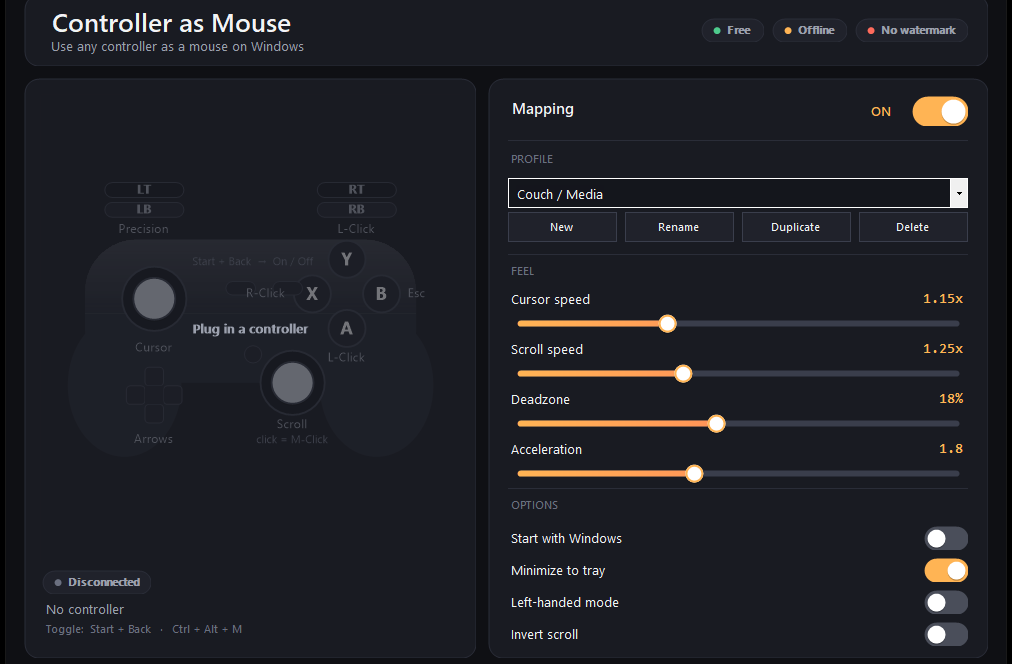
Controller as Mouse app window on Windows
vs. the competition

How this compares to other controller-to-mouse tools.

Most alternatives bury their settings in text files or lack a real interface.

 Controller as MouseTypical controller tools
Settings interfaceSliders and presets in the UIEdit .ini files by hand
CostFree, MIT licenseFree or payware
ProfilesSave and switch with one clickManual config switching
Acceleration curveBuilt-in, tuned for desktop useLinear or missing
Tray icon and quick toggleRight-click menu, Ctrl+Alt+M hotkeyApp window only
No internet needed100% offline, no accountSome require login
Quick start

Get your controller working as a mouse in under a minute.

Installation is straightforward: download, extract, run the installer, plug in your pad.

1
Download and extractGrab Controller as Mouse from the download link and unzip the archive on your PC.
2
Run the installerOpen the installer file inside and follow the setup wizard—it takes just a few seconds and needs no special permissions.
3
Plug in your controllerConnect your Xbox, DualShock 4, or DualSense pad via USB or wireless receiver and the app will detect it instantly.
4
Move the left stickYour cursor is now live. Adjust sensitivity and other settings from the sliders in the window, or pick a preset profile like Couch or Precision.
Built for living rooms

Why use a controller instead of hunting for the mouse.

A gamepad lets you control Windows without reaching for a keyboard or digging through desk clutter.

01

Couch computing

Sit back and control your TV-connected PC without leaving the sofa. The left stick is your cursor, the right stick is your scroll wheel. No mouse pad, no wrist strain.

02

One-handed browsing

For accessibility or comfort, hold a controller in one hand and navigate Windows completely. Profiles include left-handed mode that swaps the sticks for you.

03

Rest your wrist

If desk work hurts, a gamepad's grip and button layout reduce repetitive strain. The trigger has analog precision to slow down the cursor when you need fine control.

04

No setup friction

Connect the controller, launch the app, and you're done. Adjust sensitivity with sliders in the UI—no text files, no command line, no guessing.

Real-world use
Inside the appController as Mouse window

Watch your controller drive the mouse.

The cursor follows your left stick movement with a natural acceleration curve—fast at the edges, precise near center. The right stick scrolls both vertically and horizontally, making it smooth to navigate web pages, documents, and media players from across the room.

Smooth cursor controlLeft stick acceleration mimics desktop mouse feel, not linear gamepad input.
Full desktop reachWorks in browsers, media players, file managers, and every other Windows application.
Click and drag from any buttonA button, right trigger, X button, and stick press all map to mouse clicks you can hold and drag.
Common questions

Questions about controller mapping.

Grab your controller and move the cursor.

Download Controller as Mouse now and start using your gamepad as a mouse on Windows in less than a minute.

Download for Windows
Latest release · v1.0.0

Controller as Mouse guides